Use QMDC with VS Code [[guide_vscode: HowTo]]HowTo
- goalset up QMDC in VS Code for navigation, validation, and preview
- audiencedeveloper
- outcomea working IDE setup with diagnostics, go-to-definition, and live preview
- aboutVS Code Extension, LSP Server
🤖 Content Generator
- target: [[#guide_vscode.content]]
- about: VS Code Extension, LSP Server
- sources_hash: 846419d5c24b48a7
Prompt [[guide_vscode_gen_prompt: text]]textCapabilities NarrativeDoc 78%Components NarrativeDoc 77%Guides Namespace 75%
Write a guide: "Set up QMDC in VS Code for the best editing experience."
Cover:
- Install the extension (from .vsix or marketplace when available)
- What you get immediately: syntax highlighting, diagnostics (red squiggles for broken links), go-to-definition on
[[#ref]] - Key features:
- Ctrl+Click on
[[#id]]→ jumps to the object definition - Autocomplete for
[[#→ suggests existing object IDs - Diagnostics: broken links, duplicate IDs shown inline
- CodeLens: shows incoming references above each object heading
- Workspace features: open a folder with readme.qmd.md → full cross-file navigation
Use the ExtCommand and LSPFeature objects as source material for feature descriptions. Keep it practical — what do you see, what do you click, what happens.
Embed these screenshots at the matching points, using exactly this Markdown (plain
![](), no attributes — sizing/zoom is handled by the site, not the source):
- Under "What You Get Immediately":
 - Replacing the Autocomplete ASCII example:
 - Replacing the Diagnostics ASCII example:
 - After the Hover feature:
 - Under "Workspace Navigation":
 - Under "QMDC Explorer Panel":
 - Under "Preview Panel":

The QMDC VS Code extension gives you full IDE support for .qmd.md files — navigation, validation, autocomplete, and a live preview panel. No separate toolchain installation required.
Install the Extension
- Download the
.vsixfor your platform (e.g.,qmdc-vscode-darwin-arm64.vsixfor macOS Apple Silicon) - In VS Code: Extensions →
⋯menu → Install from VSIX… - Reload the window
The extension bundles the qmdc binary — it works out of the box. To use a custom build, set qmdc.server.path in settings.
Supported platforms: macOS (ARM64, x64), Linux (x64, ARM64), Windows (x64, ARM64).
What You Get Immediately
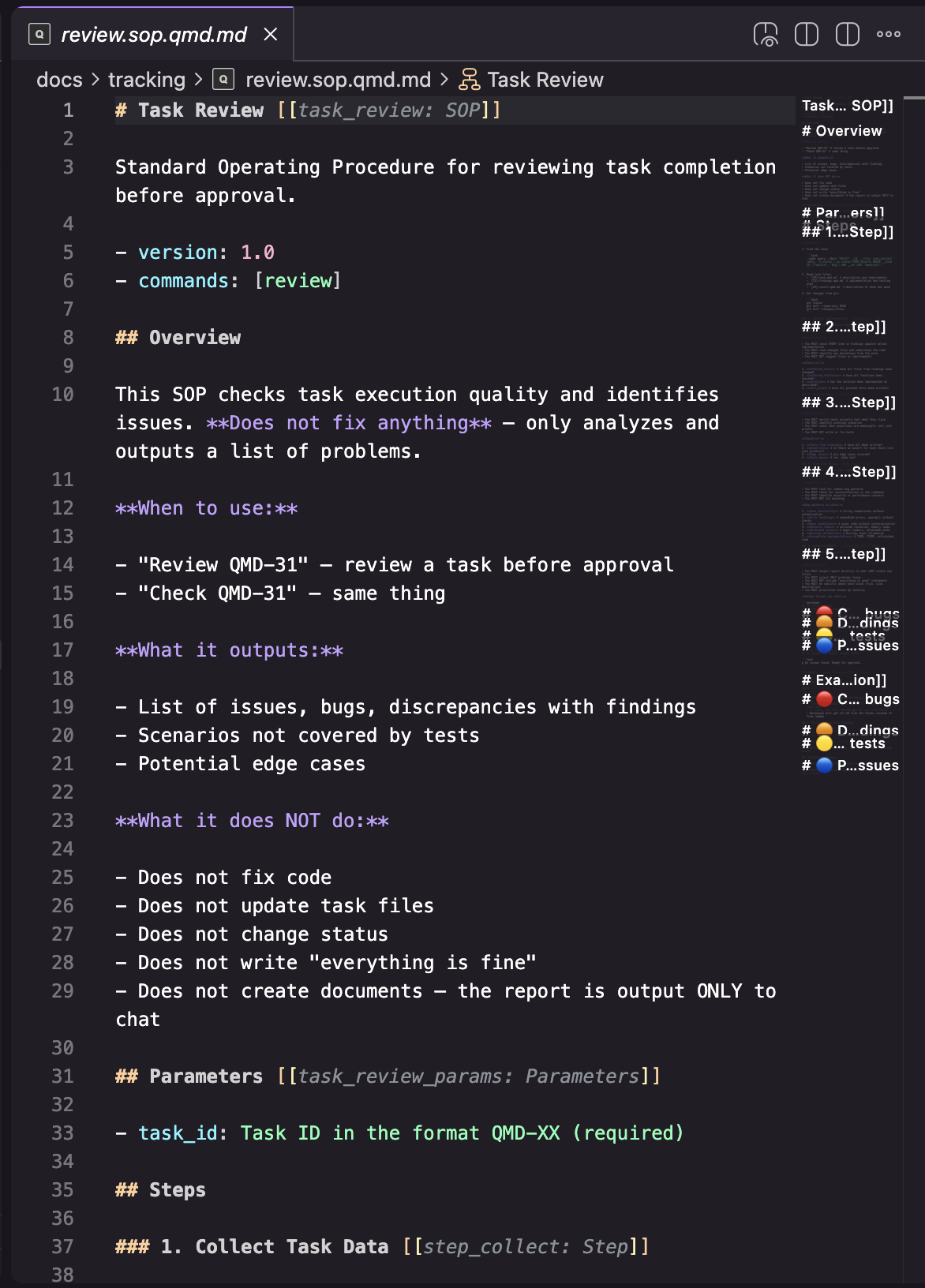
Open any .qmd.md file and you'll see:
- Syntax highlighting — object IDs, Kinds, references, and fields are color-coded via a TextMate grammar
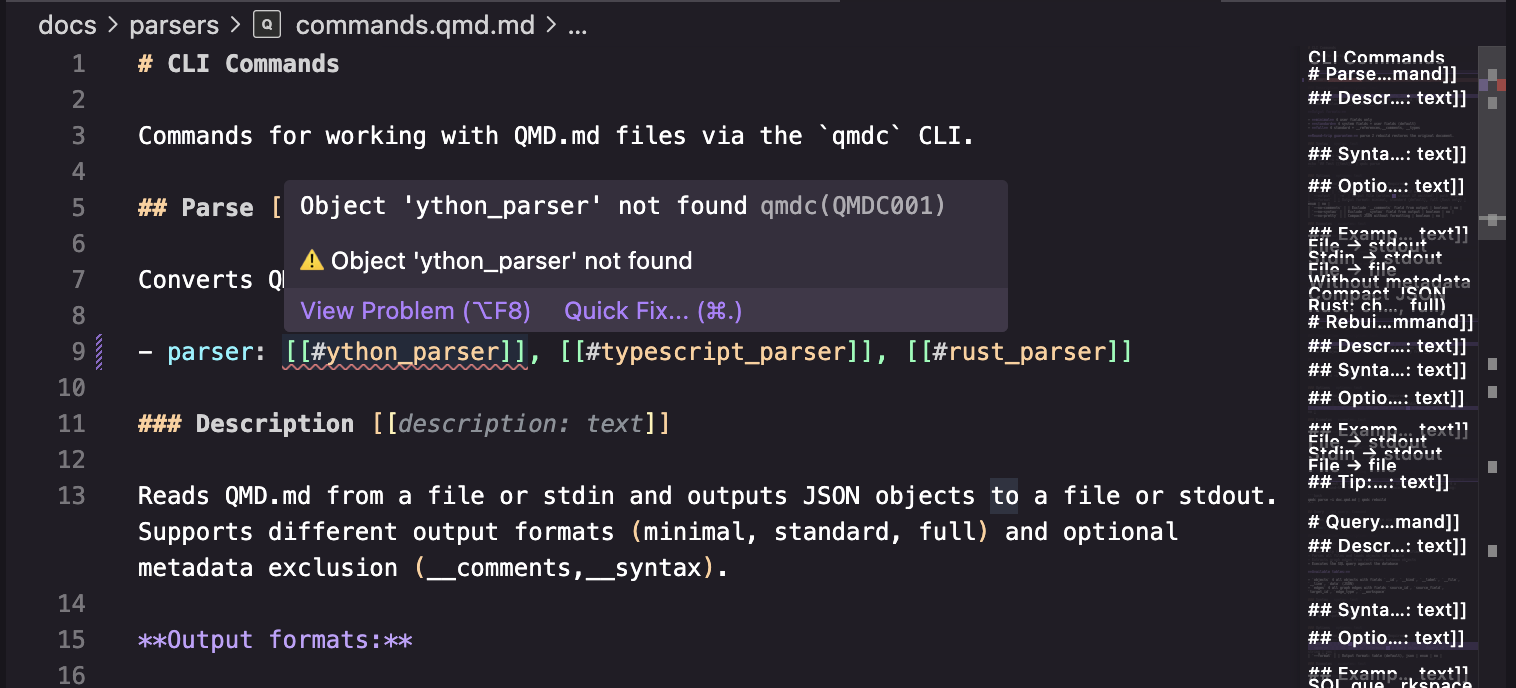
- Diagnostics — red squiggles on broken links (
[[#nonexistent]], error QMDC001) and duplicate IDs (QMDC003), shown in the Problems panel - Dimmed metadata —
[[id]]and[[id: Kind]]annotations render in gray italic so they don't distract (controlled byqmdc.dimMetadata)
Key Features
Go to Definition — Ctrl+Click (Cmd+Click on Mac) or F12 on any [[#id]] jumps to the object's heading. Works across files. Supports [[#namespace:id]] and [[#Kind:id]] forms, plus __local_id fallback for hierarchical IDs.
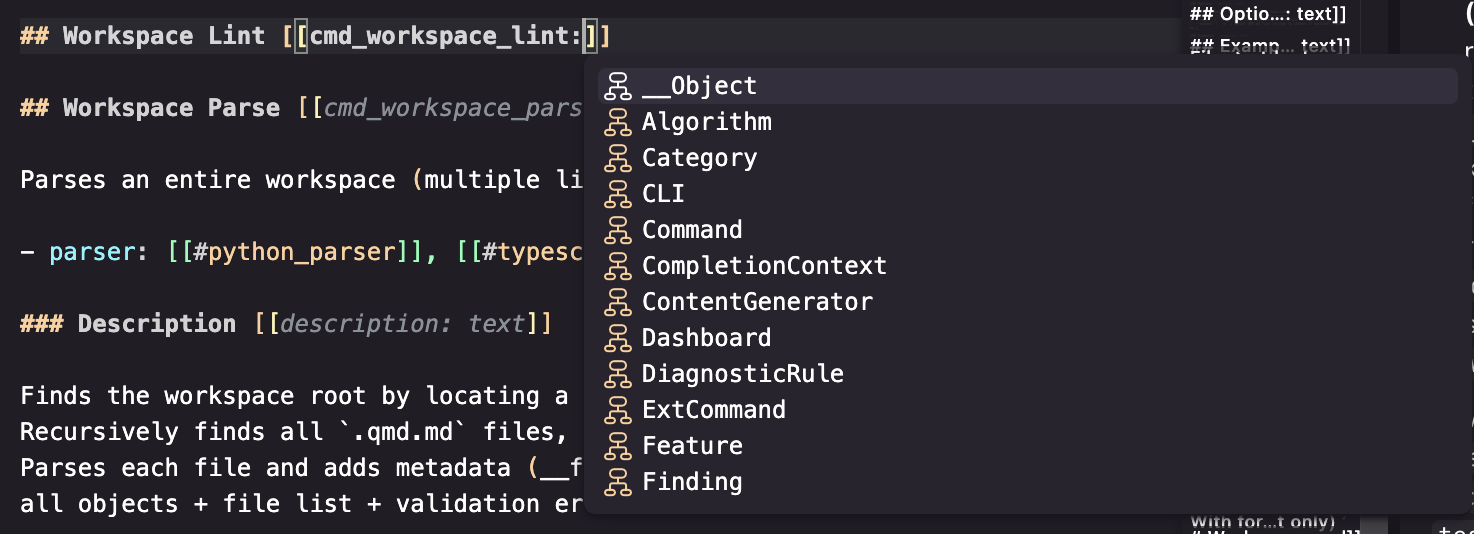
Autocomplete — Type [[# and get suggestions for all object IDs in the workspace. Also triggers on : for Kind/namespace completion, and inside heading anchors for Kind suggestions.
Diagnostics — Broken links and duplicate IDs are flagged inline as you type. Updates on open, change, and save. Related info shows where the first definition lives for duplicates.
Find All References — Cursor on an object heading → Shift+F12 shows every [[#id]] reference across the workspace. Resolution is identity-based, not string-based.
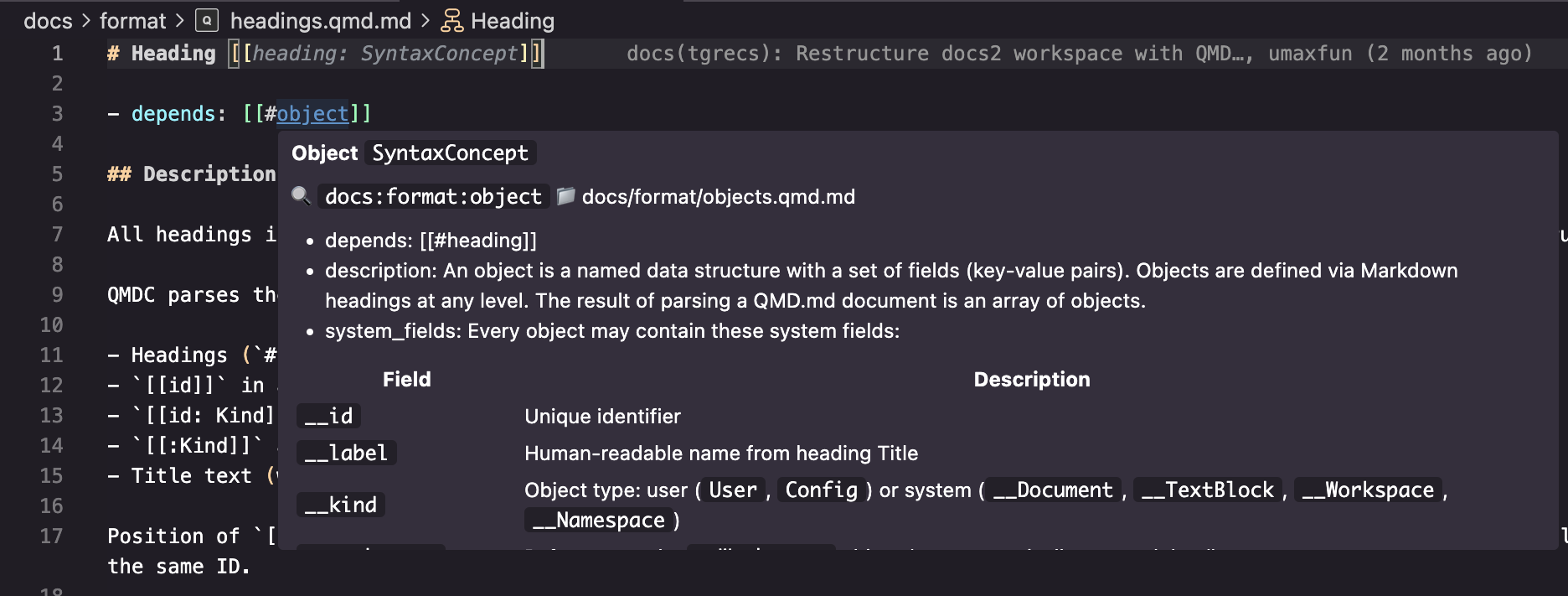
Hover — Hover over any [[#id]] to see the object's label, Kind, global ID, file location, and fields.
Rename — F2 on an object heading renames the ID and updates all references workspace-wide. Cascades to descendants (renaming team also rewrites [[#team.config]]). Validates the new ID is unique and well-formed.
Code Actions — Quick fixes via the lightbulb. For a broken link that matches a __local_id, offers "Use full hierarchical ID" to replace e.g. [[#child]] with [[#parent.child]].
Workspace Navigation
Go to Object (qmdc.goToObject, Ctrl+Shift+O / Cmd+Shift+O) — opens a searchable list of all objects. Filter by ID, label, or Kind. Select to jump to the definition.
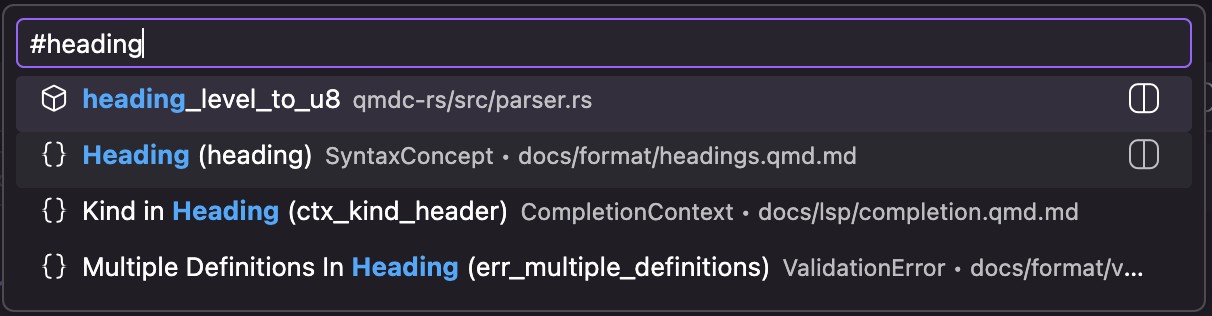
Workspace Symbol Search (Ctrl+T / Cmd+T) — type to search objects across all files. Prefix with a Kind (Table:) or namespace (storage:) to filter results.
Document Outline — the Outline panel shows the object hierarchy of the current file with Kinds and nesting as DocumentSymbol entries.
QMDC Explorer Panel
The extension adds a QMDC Explorer view in the activity bar (view ID: qmdcObjects). It shows a tree of workspaces, namespaces, and objects. Click any item to jump to its definition. Supports grouping by namespace, file, or smart hierarchy. Auto-refreshes on file changes.
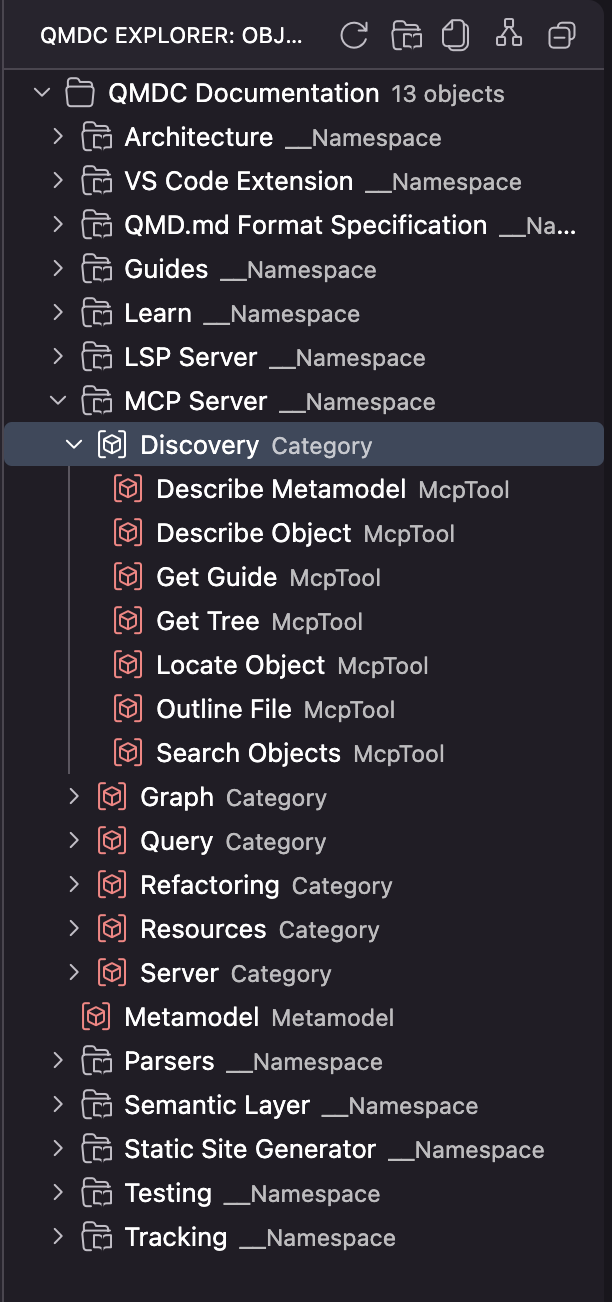
Context menu actions:
- Copy Global ID — copies
workspace:namespace:idto clipboard - Reveal in File Explorer — highlights the containing file
- Preview Object File — opens the QMDC preview for that file
Preview Panel
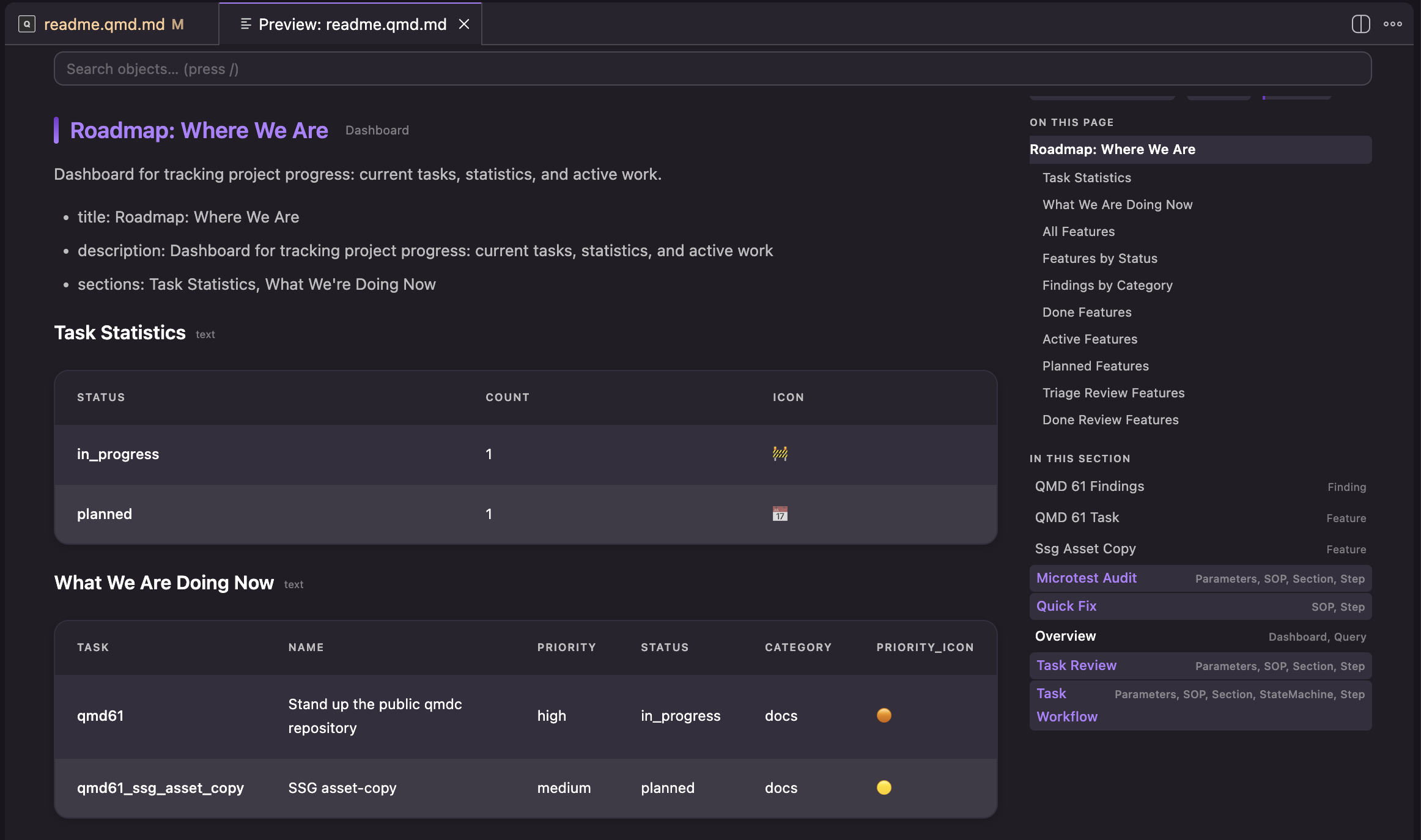
Run QMDC: Open Preview (or Open Preview Beside for split view) to see a rendered document with:
- Formatted markdown with styled content
- Executed SQL query blocks showing results inline
- Clickable
[[#ref]]links that navigate to definitions - Rendered Mermaid diagrams (bundled offline)
- Back/forward navigation (mouse buttons or Alt+Left/Right)
- Auto-refresh on edits
Commands Reference
| Command | Keybinding | Description |
|---|---|---|
| Go to Object | Ctrl+Shift+O | Search and jump to any object |
| Show References | Shift+F12 | All references to current object |
| Parse Workspace | — | Re-index all .qmd.md files |
| Validate Workspace | — | Run full validation, results in Problems panel |
| Run SQL Query | — | Query the object graph with SQL |
| Run Query from Block | — | Execute SQL from a [[query:...]] block |
| Open Preview | — | Rendered document preview |
| Open Preview Beside | — | Preview in split view |
| Refresh Explorer | — | Reload the QMDC Explorer tree |
| Restart Language Server | — | Stop and restart qmdc from scratch |
SettingsSettings NarrativeDoc 77%Capabilities NarrativeDoc 75%Components NarrativeDoc 75%
| Setting | Default | Description |
|---|---|---|
qmdc.server.path |
"" |
Path to qmdc binary (empty = bundled or PATH) |
qmdc.trace.server |
off |
LSP tracing: off, messages, verbose |
qmdc.dimMetadata |
true |
Dim [[id]] metadata annotations in gray italic |
qmdc.showPreviewButton |
true |
Show preview button in editor title bar |
For the full list of LSP features and their implementation status, see LSP Server. For extension command details, see VS Code Extension.